Moving Craft Content Between Environments with Transport
Every Craft developer knows the database rule. Code and project config move up, from local to staging to production. Content moves down, from production back to your machine. You never push a database up to a live site, because the moment you do, you wipe out whatever the client's team changed since your last pull.
Most of the time that rule is easy to follow. Then a project comes along where a big chunk of new content has to go up, and the database rule leaves you with two bad options: rebuild it all by hand in production, or copy the database and pray.
That's the job I built Transport for, and last month I used it on a real one. Here's how it went, including the part that broke.
The project: FabFest Charlotte on the Tosco Music install
Tosco Music runs on a multi-site Craft 5 install. The Tosco Music site is one site in it. FabFest Charlotte, their festival, is another. They share the install, the asset volumes and the control panel, but each has its own sections. FabFest has three: a homepage single, a pages structure and a sponsors channel.
We built the whole FabFest site on staging. Templates, fields and sections went out through project config like normal. The content was the problem: about 60 entries plus every image that went with them, all sitting in the staging database.
And we couldn't copy that database to production, because the Tosco team was editing the Tosco side of production every day. Same database, same tables. Pushing staging up would have thrown away weeks of their work to deliver ours.
What I needed was to take just the FabFest sections, plus their assets, from one environment and drop them into another without touching anything else. That's what Transport does.
How Transport thinks about content
A database copy moves everything, including the IDs. Transport moves only what you pick, and it doesn't trust IDs at all.
An export is a .zip with a manifest.json, a JSON file per element type and, if you ask for them, the actual asset files. Every reference inside it, whether that's a relation, a structure parent, an author or a Matrix block, is stored as a UID instead of an ID. Entry 412 on staging might be entry 1,980 on production, and that's fine. On import, Transport looks each UID up in the target and wires things together with whatever the local IDs are there.
It also sorts the import so every element lands after the things it depends on. A child page goes in after its parent. An entry goes in after the assets it uses. You don't have to work out the order yourself.
Exporting from staging
The export side is one screen. I picked the FabFest site, ticked Entries and Assets, and turned on Include asset files so the package carried the images themselves, not just records that point at files production didn't have.
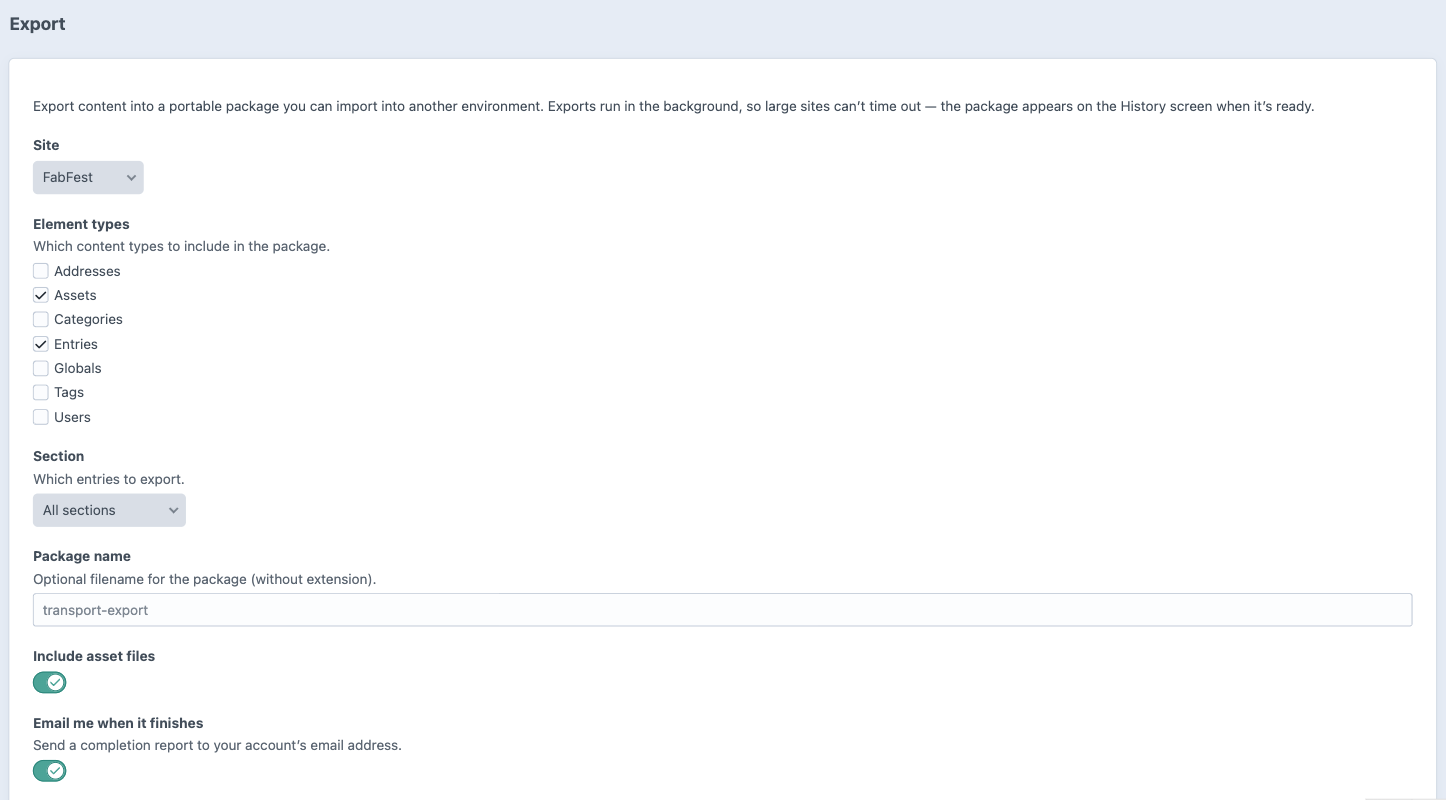
Exports run on Craft's queue, so a big package can't hit a request timeout. When it's done, you download it from Transport → History. If you'd rather script it, the console command does the same thing and shows progress as it goes:
Terminal
php craft transport/export --types=entries,assets --site=fabfest --output=fabfest.zipImporting into production
The import side is a four-step wizard, and the middle two steps are the reason I trust it on a live site.
- Upload the package.
- Configure. Every element in the package is listed with what will happen to it: Add, Update or Unchanged. You can uncheck anything you don't want. A pre-flight check also flags sections, entry types or volumes the package expects that don't exist in the target, so you find out about a missing project config change before anything is written.
- Preview. For anything being updated, you see the current value next to the incoming one, field by field. Uncheck a field and production keeps what it has. You can also tick Dry run to simulate the whole thing and get a report without saving anything.
- Run. The real import goes to the queue, takes a snapshot first, and posts its report to History when it's done.
For FabFest, nearly everything was an Add. That's what you'd expect when the content has never been on production. So I ran it.
The part that broke
The first import, a little before 1 a.m. on August 17, failed.
![A failed Transport import in the Craft control panel. The error reads: Entry FabFest Homepage [fabfest]: Could not generate a unique URI based on the URI format.](/images/blog/craft-transport-fabfest/failed-import.webp)
The error was about the FabFest homepage, and once I looked at it, the cause was obvious. When you deploy a new single section through project config, Craft creates its entry for you, and it does that in every environment. So production already had an empty FabFest homepage. It just had a different UID from the one on staging, because each environment made its own.
Transport only matched on UIDs, so it saw the staging homepage as new content and tried to add a second one. Two entries in the same single, same URI, and Craft refused. It's a correct refusal, and I'm glad it happened on the homepage instead of quietly duplicating something less obvious.
Singles aren't the only way to hit this, either. Any content that gets created separately in each environment, or seeded before Transport was installed, has the same problem: same content, different UIDs.
The fix, shipped the same morning
This is the fun part of using your own plugin on client work. I didn't have to file a bug and wait.
Transport 5.1.0 went out at about 7 a.m. that morning. When a UID in the package doesn't exist in the target, Transport now looks for the element that already does, using a natural key that makes sense for its type:
- a single, by its section
- an entry or category, by its slug within its section or group
- an asset, by its filename
- a user, by their email address
If it finds a match, it updates that element instead of adding a copy. If you depend on strict UID-only behavior, there's a Match existing content on import setting to turn it off.
The same release moved control panel imports and exports onto the queue, added email notifications when they finish, and added the detailed run reports you'll see below. The FabFest import was a long one, so I wanted all of that anyway.
Round two
I updated Transport on production, uploaded the same package, and ran it again later that morning.
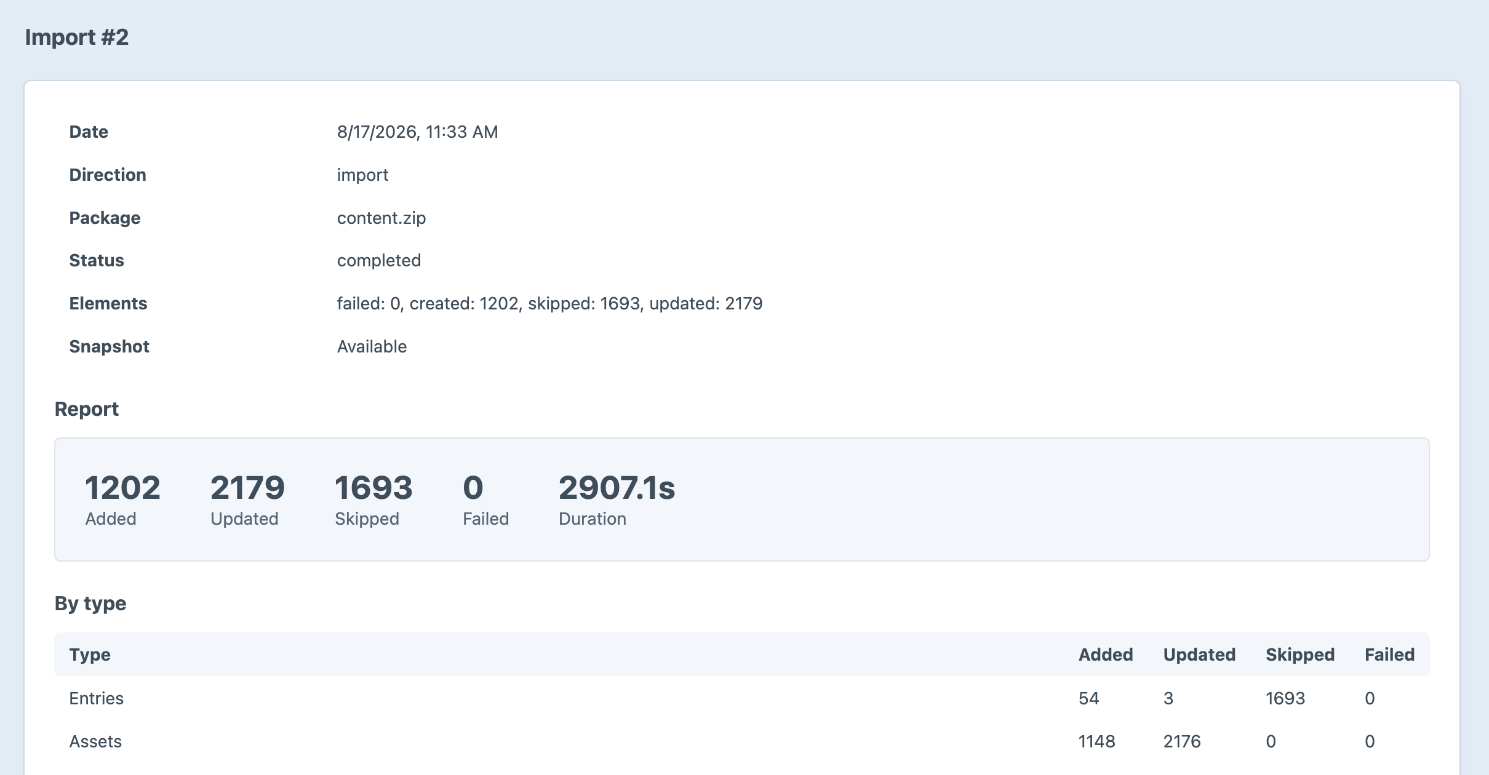
Here's what the numbers mean:
- 54 entries added and 3 updated. The updates are entries that already existed on production under a different UID, the homepage that broke the first run among them. This time they were matched and filled in instead of duplicated.
- 1,148 assets added and 2,176 updated. The two sites share asset volumes, so a lot of the images FabFest used were already on production. Transport matched those by filename instead of uploading second copies.
- 1,693 skipped. Every skip is listed in the report with a reason. These were entries Transport couldn't map to a site in production, so it left them alone and told me why.
- 0 failed, in about 48 minutes. On the queue, in the background, while the Tosco team kept editing their side of the site.
The report goes on to list every element by name under Added, Updated and Skipped. When a client asks "did the sponsor logos make it over?", I can answer with the list instead of a shrug.
The safety net I didn't need
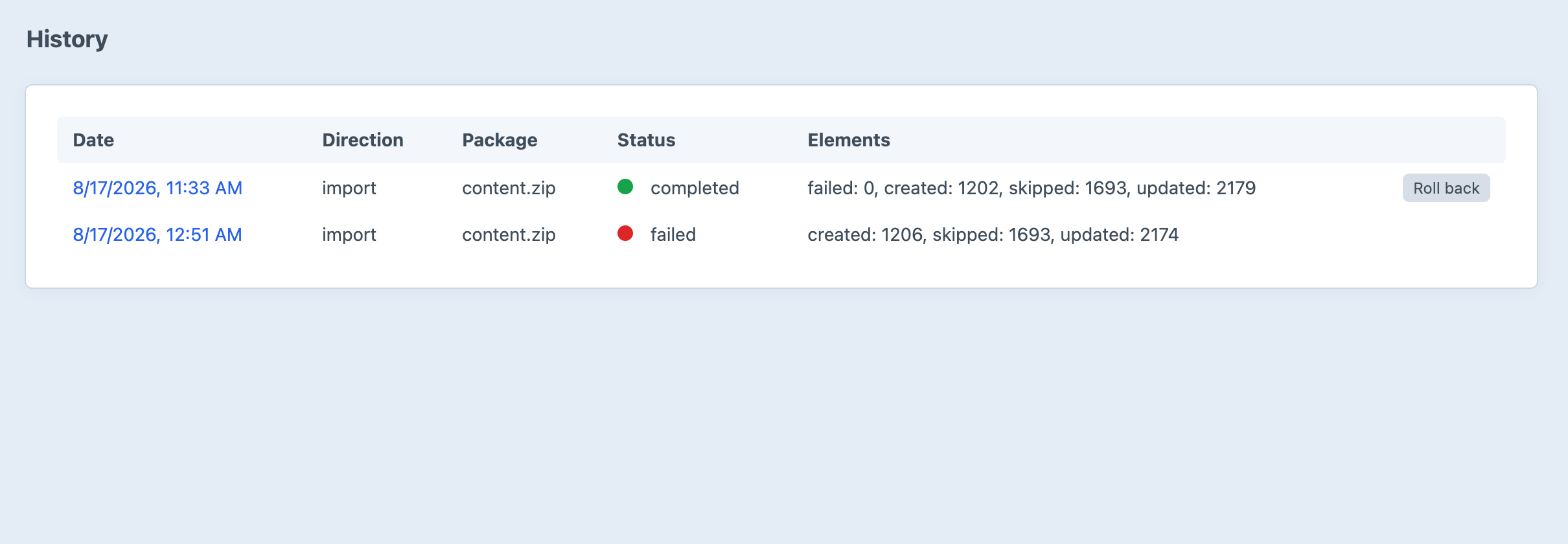
See that Roll back button? Every import takes a snapshot before it writes anything. Roll back and Transport puts updated elements back how they were and deletes the ones the import created. Rollbacks get snapshotted too, so you can undo an undo.
I didn't need it for FabFest. But knowing it's there is a big part of why I was willing to run a 5,000-element package against a live site the client was using that day.
When to reach for Transport
Transport isn't a replacement for your normal deployment workflow. Project config still handles structure, and pulling production down to your machine is still the right way to get real content locally. (I covered the project config side in my post on Craft deployment pipelines.)
It's for the times content has to go the "wrong" way:
- A new section or a whole new site in a multi-site install, built on staging while production stays live
- A content-heavy redesign or launch that was staged ahead of time
- Moving a batch of entries between two separate Craft installs
- Seeding a new environment with a known, inspectable set of content
If you've ever rebuilt 60 entries by hand in production because a database copy wasn't an option, it's worth a look. You can find it at craft-transport.com or install it with Composer:
Terminal
composer require justinholtweb/craft-transport
php craft plugin/install transport
And if you've got a migration like FabFest coming up and want a hand with it, get in touch.
Comments
No comments yet.